
Last Updated on 2026-08-21 by Dr.Wall
My rule for deciding whether ExpressVPN is worth the premium
ExpressVPN is not the value winner, and pretending otherwise makes a review less useful. I would pay the premium when the VPN has to survive frequent hotel and airport networks, long-distance routes, or a trip where losing an hour to protocol troubleshooting costs more than the subscription difference. For an ordinary home connection, the extra spend is harder to justify.
| Use case | My starting point |
|---|---|
| Frequent travel, long routes, minimal troubleshooting | ExpressVPN first |
| One-year value and routine privacy | StrongVPN |
| Many household devices | Surfshark |
| Short route test before committing | FlowVPN |
During the refund window I test three networks, not three speed-test servers: home broadband, phone tethering, and public Wi-Fi. I also force a sleep/wake cycle and change protocols once. If reconnecting still needs repeated manual intervention, the premium has failed the test.
ExpressVPN sits at the premium end of this comparison. I would pay more for it when a trip involves frequent hotel Wi-Fi, long-distance routes and little time for troubleshooting; for routine home privacy, StrongVPN is the lower-cost starting point. This guide explains the purchase, account, installation and recovery steps so you can test that premium on the devices and networks you actually use.
ExpressVPN APK, activation codes and free premium accounts
The app itself is free to download, but using the paid network requires a valid subscription. A code sent to your email verifies a sign-in; the activation code shown inside the account dashboard is a separate credential used by supported apps. Neither is a public coupon or a reusable “free premium” key.
Use the app store or the download area inside your ExpressVPN account. If Play Store access is unavailable, get the Android installer only through ExpressVPN's own download flow and verify the domain before opening it. A cracked APK can replace the login screen or change the network code, which defeats the reason for installing a VPN.
Where ExpressVPN earns its premium
ExpressVPN costs more than a budget-first VPN, so the useful question is not whether the app looks polished. It is whether that polish saves time when a laptop moves between home broadband, mobile tethering, hotel Wi-Fi and a long-distance server.
- frequent travel and changing Wi-Fi networks
- people who want fewer protocol and server decisions
- households that value a simple app more than the lowest annual cost
- the annual price is the main constraint
- you only need a short backup connection
- one specific streaming app is your only reason to subscribe
Quick VPN choice: price, speed and real use first
ExpressVPN is the premium pick for travel, hotel Wi-Fi and changing long-distance routes. If price matters more, compare it with StrongVPN before buying.
Before paying, check today's speed image, the total first charge, renewal terms and the device you actually use.
US$54/year, about US$4.50/month ExpressVPN
premium travel and difficult networks Surfshark
many devices, family and mobile use FlowVPN
3-day trial and backup route
1. ExpressVPN Key Advantages ExpressVPN is renowned for its exceptional performance and reliability worldwide. Key strengths include:
- Blazing-fast speeds with minimal loss, powered by the proprietary Lightway protocol.
- Strong security features: AES-256 encryption, audited no-logs policy, TrustedServer (RAM-only) technology, and perfect forward secrecy.
- Excellent for 4K/8K streaming, gaming (low latency), torrenting, and secure remote work.
- The official location list currently covers 113 countries and more than 214 selectable locations; some are virtual locations, so country count alone is not a speed guarantee.
- User-friendly apps with advanced options like split tunneling, kill switch, and Threat Manager (blocks trackers/malware).
The long-distance test most VPN reviews skip
A nearby speed test says little about a route from New Zealand or Australia to Europe or North America. I would run the same 20-minute task on a nearby server and on the distant region actually needed, then compare recovery rather than peak speed.
| Test | What matters | Failure signal |
|---|---|---|
| Wi-Fi to phone hotspot | Lightway reconnect time | The app says connected while traffic remains stalled |
| Video call | Jitter, audio gaps and screen sharing | A fast download score but broken conversation |
| Streaming app | App login and 20-minute playback | Browser works but the TV or mobile app fails |
ExpressVPN says its current network spans 113 countries and 214+ selectable locations. That improves route choice, but it does not replace testing the exact route, ISP and device you use.
ExpressVPN plans and checkout: what to verify
ExpressVPN 2026 Deals & Purchase Guide ExpressVPN regularly offers attractive promotions, especially on longer plans:
- Plan names, introductory discounts and included features change; compare the final checkout total rather than an old monthly headline.
- Check the billing period, renewal price, device allowance and refund terms on the official checkout page.
- 30-day money-back guarantee — test risk-free.
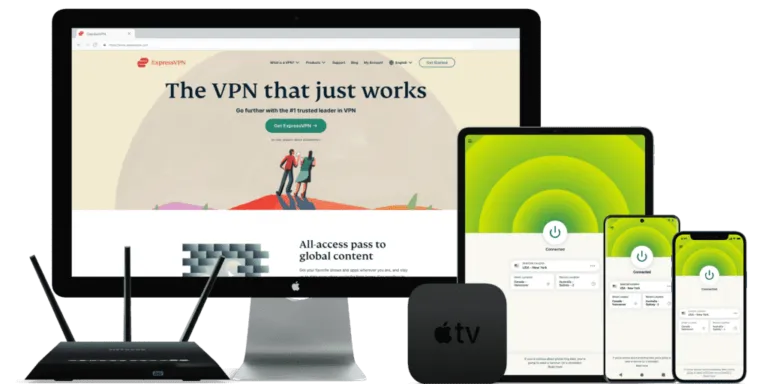
Extra months on selected plans · Automatic protocol switching · 30-day money-back guarantee
ExpressVPN: A World-Renowned VPN Provider Offering Top-Tier Security and Performance
Company Background
Founded in 2009, ExpressVPN is headquartered in the British Virgin Islands. While details about its ownership remain private, the company has consistently maintained a transparent approach in its operations, with a strong focus on privacy and security.
Key Features
ExpressVPN supports multiple VPN protocols including OpenVPN (UDP/TCP), IKEv2, L2TP/IPSec, and their own proprietary Lightway protocol. It uses AES-256 encryption—the industry standard for military-grade security. ExpressVPN also enforces a strict no-logs policy, meaning it does not collect or store any user activity data.
Servers and Locations
With an extensive network of servers in over 90 countries, ExpressVPN offers fast, stable, and reliable connections for users around the globe. Its broad coverage allows users to bypass geo-restrictions and access global content with ease.
Device Compatibility
ExpressVPN is compatible with a wide range of devices and platforms, including Windows, macOS, iOS, Android, Linux, routers, and smart TVs. One account can be used on up to 5 devices simultaneously.
Customer Support
ExpressVPN provides 24/7 customer support through live chat and email. Their official website also features a comprehensive library of tutorials and troubleshooting guides to help users resolve any issues efficiently.
Privacy and Security Features
ExpressVPN includes several advanced privacy tools, such as a kill switch (called “Network Lock”), split tunneling (which allows users to choose which apps use the VPN), and DNS leak protection—all designed to keep your data safe at all times.
Transparency and Audits
To back up its no-logs policy and ensure compliance with the highest security standards, ExpressVPN regularly publishes transparency reports and undergoes independent third-party audits.
- ExpressVPN is one of the most popular VPN services on the market, trusted by over 10 million users worldwide.
- It offers top-tier security with 256-bit encryption and a strict no-logs policy to ensure your privacy is always protected.
- ExpressVPN is compatible with a wide range of devices, including Windows, macOS, iOS, Android, and Linux.
- With over 3,000 servers in 94 countries, ExpressVPN provides extensive global coverage for fast and reliable connections.
- It offers unlimited bandwidth and server switching, making it perfect for streaming, gaming, and other high-demand activities.
- Customer support is available 24/7 through live chat and email, ensuring help is always just a click away.
- ExpressVPN comes with a 30-day money-back guarantee, so you can try it risk-free.
- It is often used by travelers and remote workers who need a polished app, strong device support and reliable privacy features.
- In our use, ExpressVPN is usually strongest when reliability, app quality and quick server switching matter more than chasing the cheapest plan.
- Overall, ExpressVPN is a top-tier, all-around VPN solution that combines excellent features with outstanding performance.
ExpressVPN offers a 30-day money-back guarantee and is a well-established VPN provider popular among users in the US, Europe, and other Western markets. With a massive and reliable user base, there's basically no worry about it disappearing or running off. It has servers in 105 countries worldwide, with over 3,000 servers in total.
Note: Below is a practical overview of ExpressVPN's key advantages and features. For a detailed breakdown of its functions, setup guide, and more, check out the “ExpressVPN Usage Guide” article.
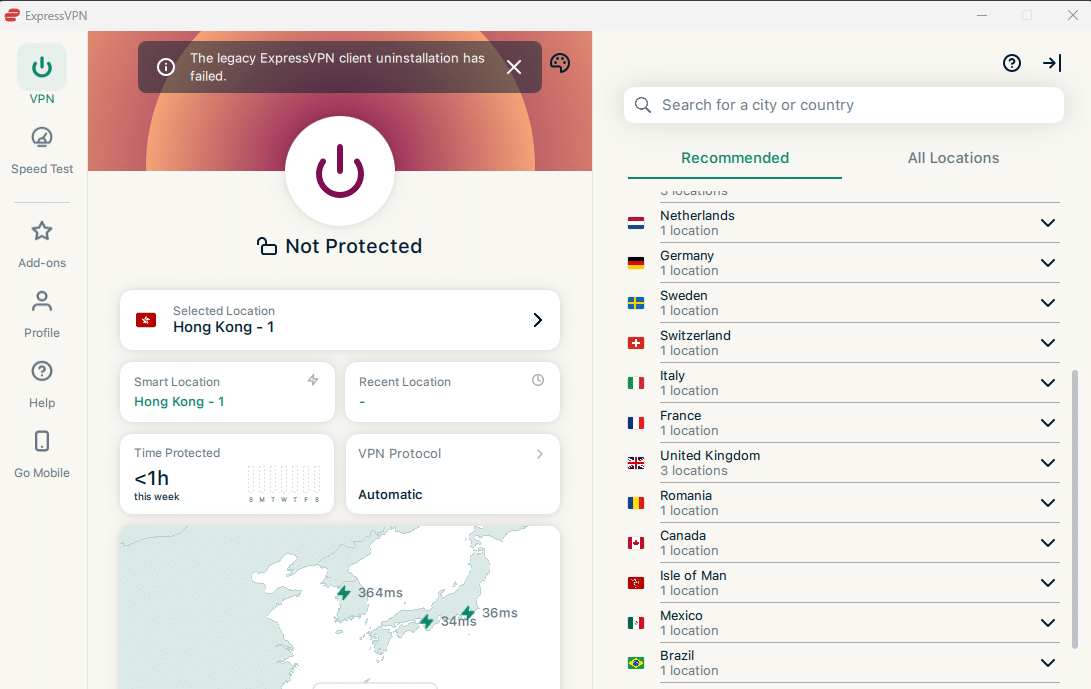
ExpressVPN offers dedicated servers optimized specifically for users on restrictive networks, eliminating the hassle of manually testing different nodes. These special configurations are designed to provide fast and stable access for handling restrictive networks. If you're looking for a simple, one-click solution to access the open internet, ExpressVPN is an excellent choice.
Dedicated R&D Team for the international Market
ExpressVPN is one of the better-known international VPN providers with long-running support for restrictive network environments. This matters because restrictive networks change often, and a VPN without ongoing maintenance can stop working quickly.
One-Click Speed Test
With ExpressVPN’s built-in Speed Test feature, users can instantly check the performance of all available servers. This makes it easy to choose the best server based on speed and latency, without the need for manual testing.
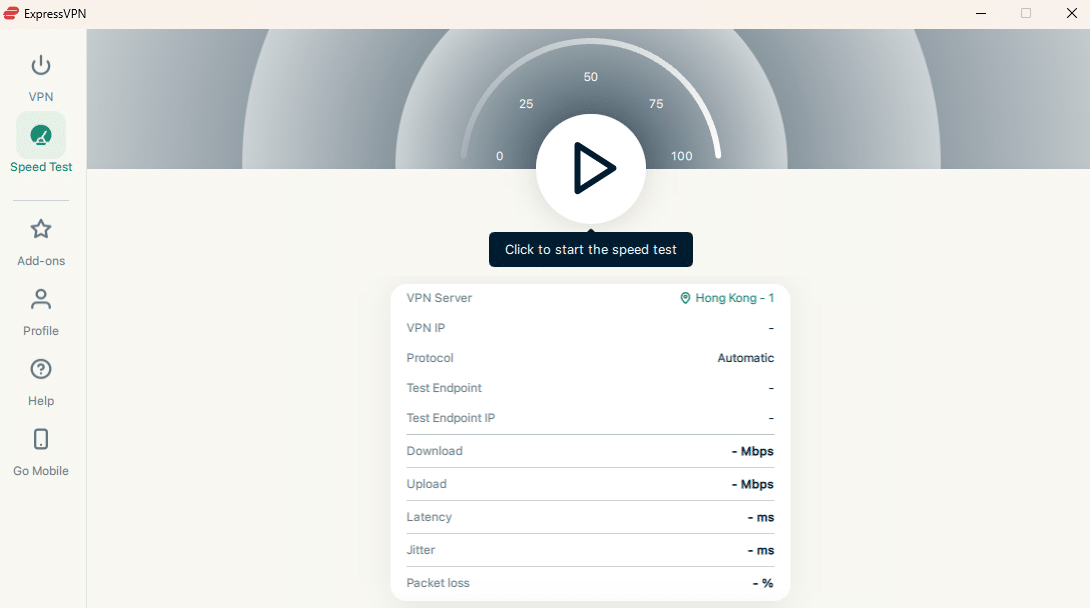
Unlike many other VPN services that require users to manually test each server for speed and latency—often wasting time without clear results—ExpressVPN makes the process simple and efficient.
With just one click on the “Speed Test” feature in the ExpressVPN app, users can instantly run tests across all available server locations. Based on the results, you can easily choose the best server with the lowest latency and fastest speeds, saving time and ensuring optimal performance.
Real-World Speed Notes
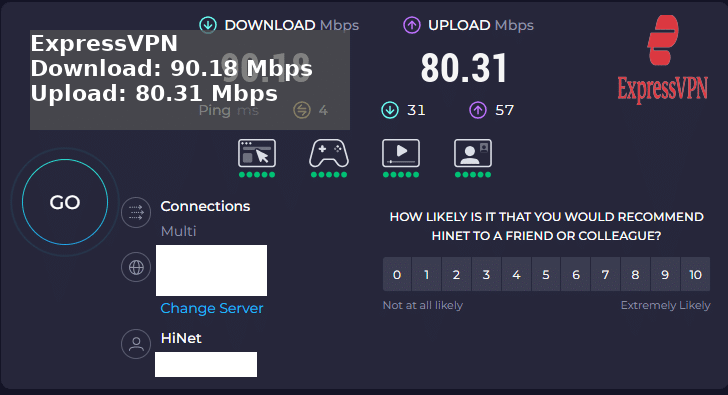
While many bloggers make unfounded VPN recommendations, I aim to provide honest, real-world results. Below is a screenshot from a recent ExpressVPN speed test. The connection was made through a Japanese server—and the results were impressive.
ExpressVPN Summary
ExpressVPN is a top-tier VPN provider offering exceptional levels of security and privacy. However, it comes at a slightly higher price point compared to some competitors.
Its powerful encryption makes it extremely difficult for anyone to intercept your data or compromise your device. ExpressVPN also features a kill switch, which automatically blocks all internet traffic if the VPN connection drops—helping prevent data leaks.
The service adheres to a strict no-logs policy, meaning it does not store any records of your online activity.
Bottom line: ExpressVPN delivers a premium VPN experience with high-level privacy and security features, though it may be considered a bit expensive. For users who prioritize reliability, performance, and safety, it remains one of the stronger choices on the market.
ExpressVPN Deals & Purchase Guide – How to Get the Best Offer Safely
Important Safety Tip Never trust sites offering “cracked” versions, free trials without signup, or unusual payment methods not listed on the official site. Stick to the official link below to avoid risks.
ExpressVPN is one of the most popular and highest-rated VPN services globally, which unfortunately attracts fake websites and scam imitators. These fraudulent sites often mimic the official design to trick users into downloading malware, steal personal data, install crypto miners, or steal payment information. Always verify you're on the real ExpressVPN website: expressvpn.com (check the URL carefully — no variations like “express-vpn.net” or similar).
Step-by-Step Guide to Get the Best ExpressVPN Deal
Open the current official offer here, then check the full first charge and renewal terms before paying:
The official checkout is the only reliable place to confirm the current plan, introductory discount and renewal terms.
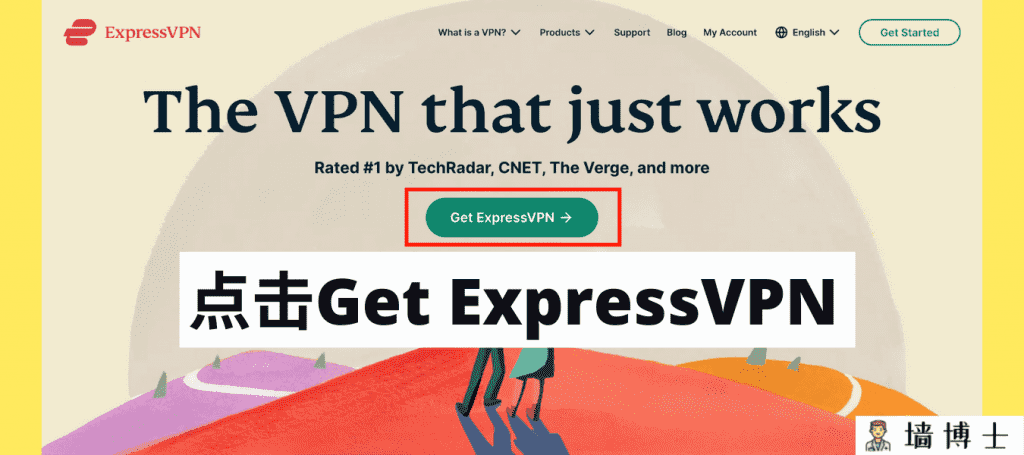
Step 2: Click “Get ExpressVPN”
On the landing page, look for the prominent Get ExpressVPN or Claim Offer button (usually green or blue). Click it to start the signup/checkout process.
Step 3: Choose Your Plan
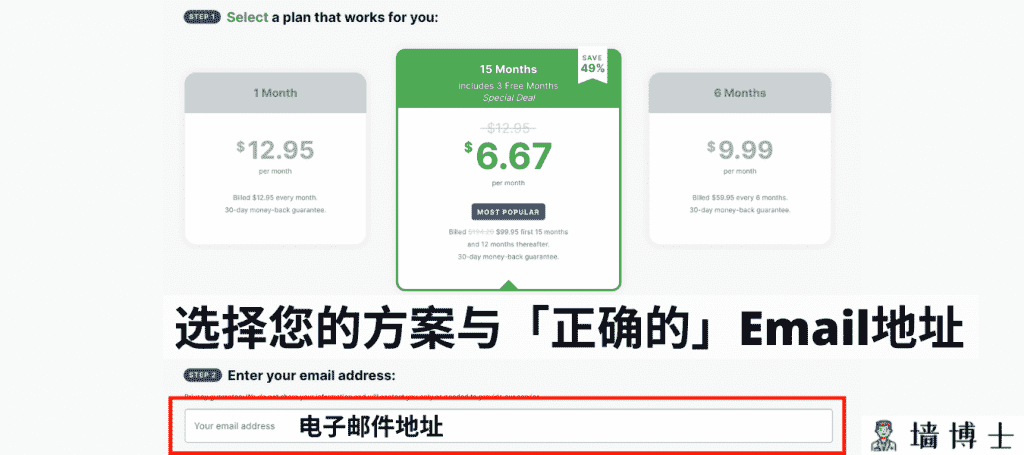
Select the subscription length:
- 1-month (higher monthly price, flexible)
- 6-month (good middle option)
- 12-month (compare the current total and renewal price)
Using the exclusive link above usually auto-applies the maximum discount. Enter an email address you can access. It is used for the account and sign-in verification; the separate activation code is available from the account dashboard when a supported app asks for it.
Step 4: Select Payment Method
ExpressVPN supports secure, global payment options including:
- Credit/Debit Cards (Visa, Mastercard, etc.)
- PayPal
- UnionPay
- Bitcoin & other cryptocurrencies
- Google Pay, Amazon Pay (depending on region)
Note: ExpressVPN no longer supports Alipay or WeChat Pay for new purchases. If you see those options on a site, it's NOT the official ExpressVPN — close the tab immediately and use the link above.
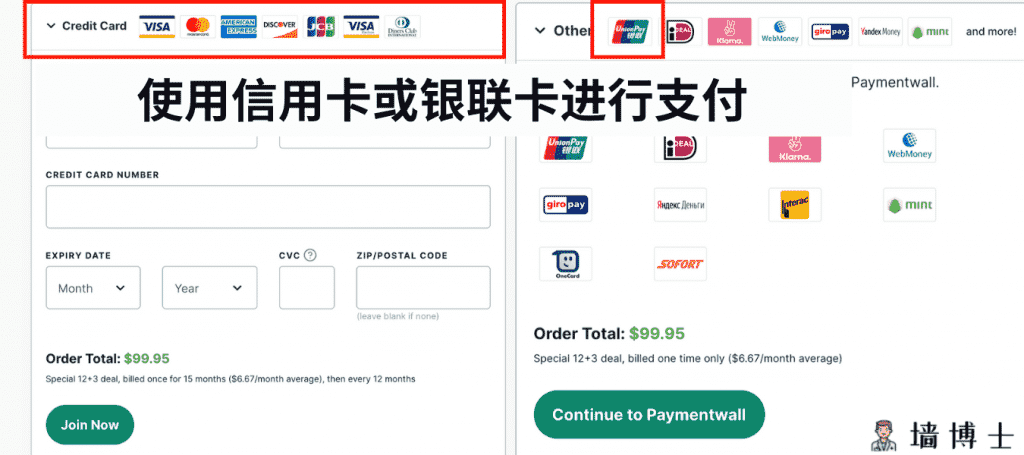
Step 5: Complete Payment & Activate Your Account
After payment, ExpressVPN sends an activation email to your provided inbox. Open the email and click the activation link inside. You'll receive a one-time temporary password.
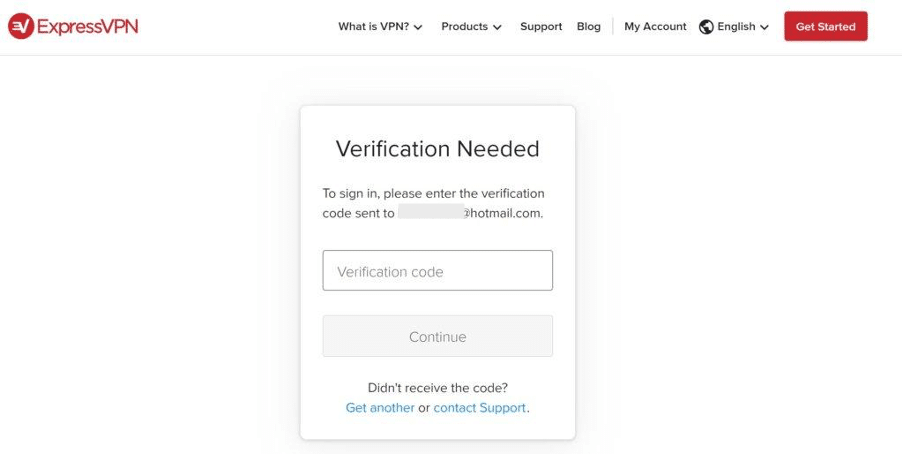
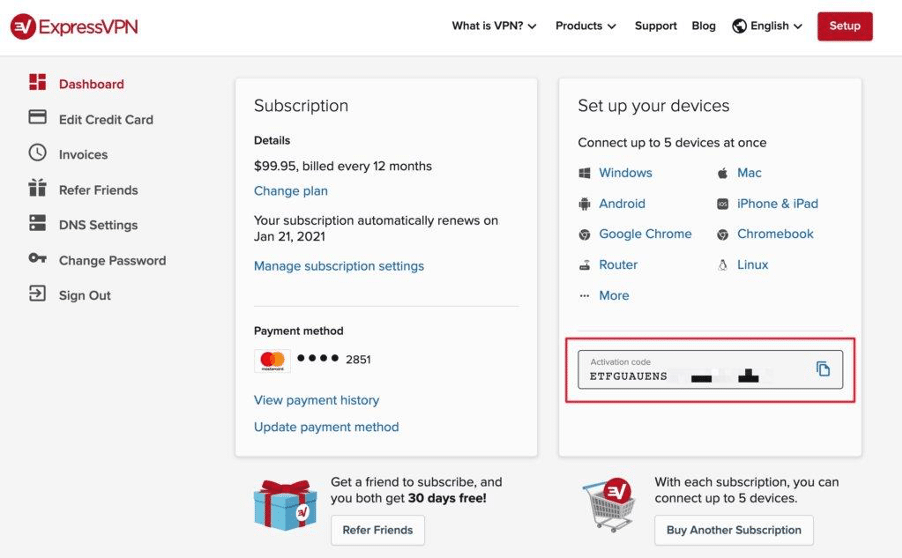
Enter the security verification code sent to your email to open the account dashboard. The activation code shown in the dashboard is a different credential used by supported apps; keep it private and follow the current setup prompt for each platform.
ExpressVPN Mac Installation & Usage Guide
Here’s a step-by-step demonstration using macOS (the process is nearly identical for Windows PCs as well).
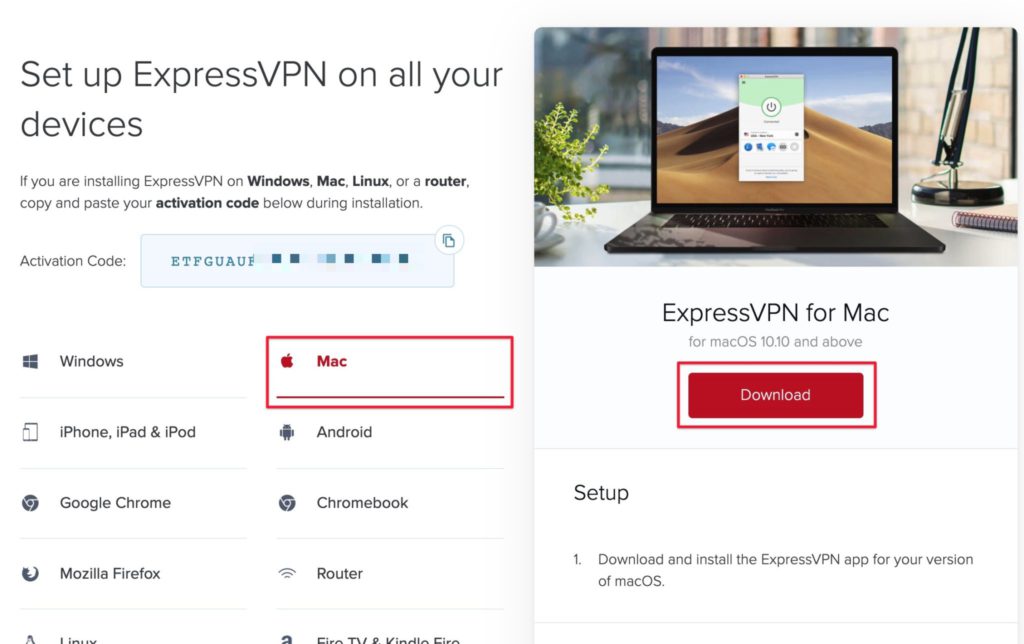
Step 1: Download the Correct App from the Official Site
Visit the official ExpressVPN website — it automatically detects your operating system, but you can manually select macOS.
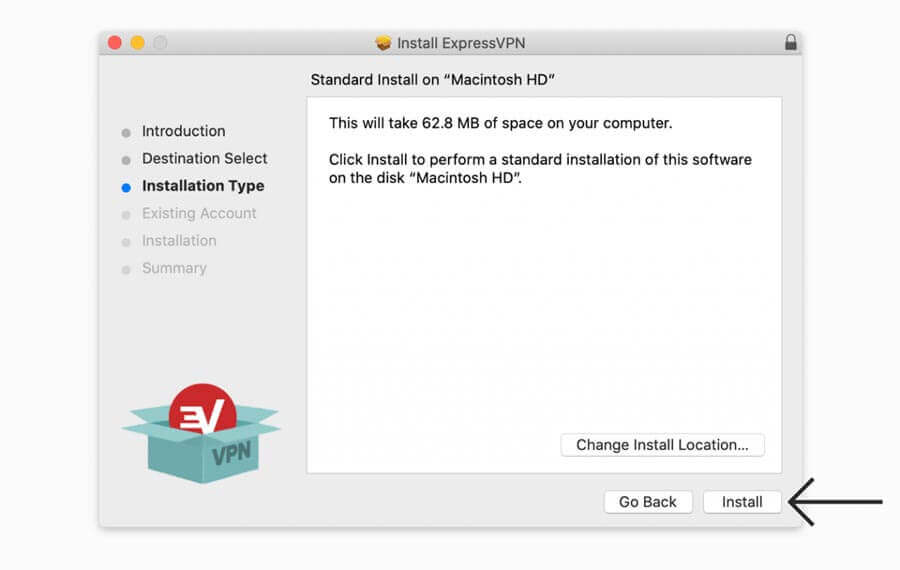
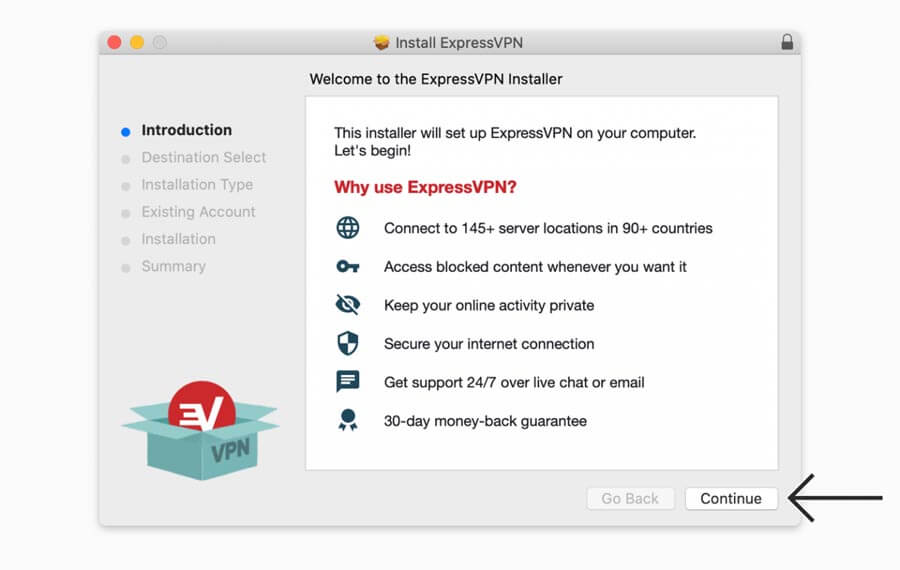
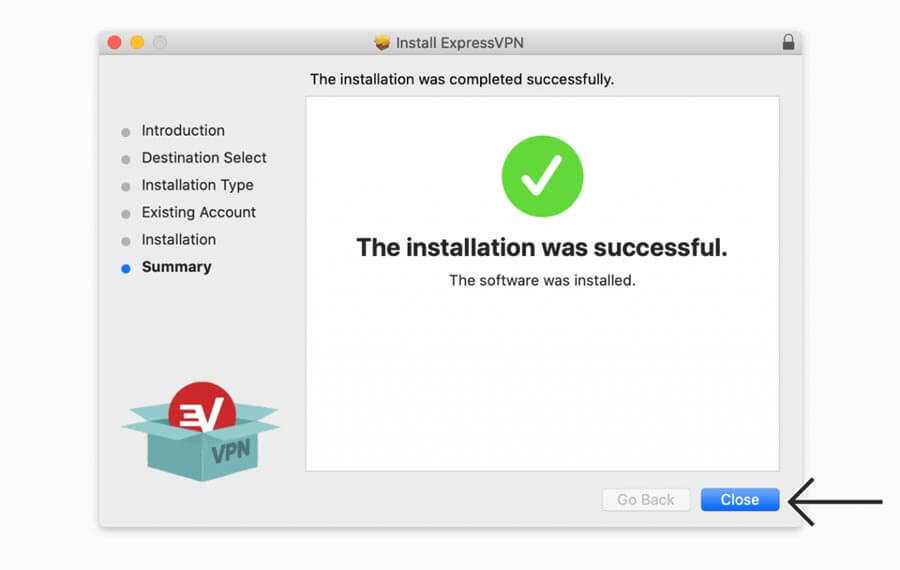
Step 2: Run the Basic Installation
Open the downloaded .dmg file (or installer from App Store). Follow the on-screen instructions: drag the app to Applications folder (or click Install), and complete the setup.
Step 3: Enter Activation Code on First Launch
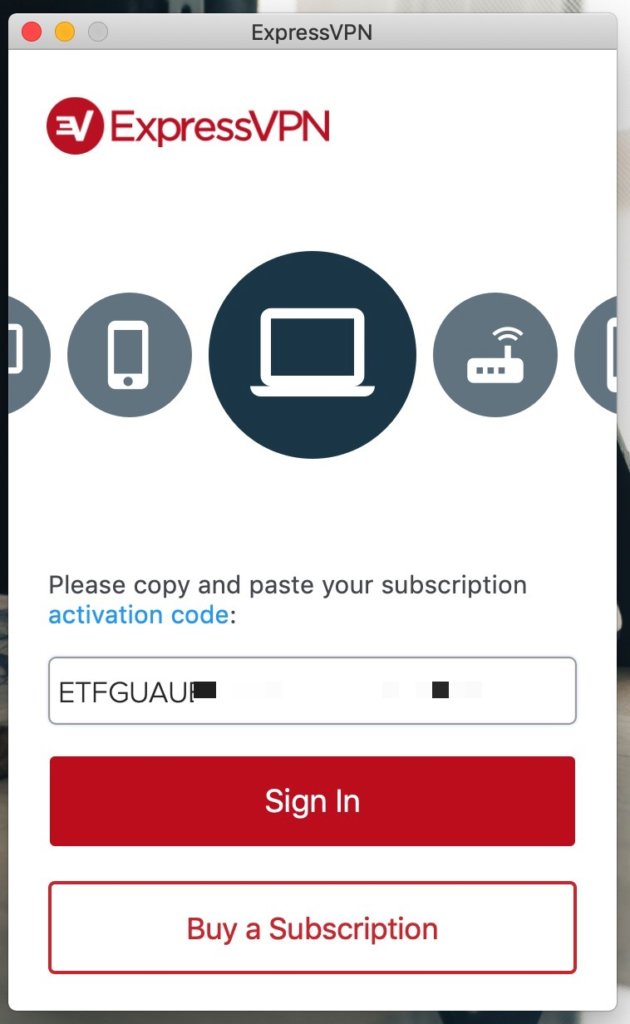
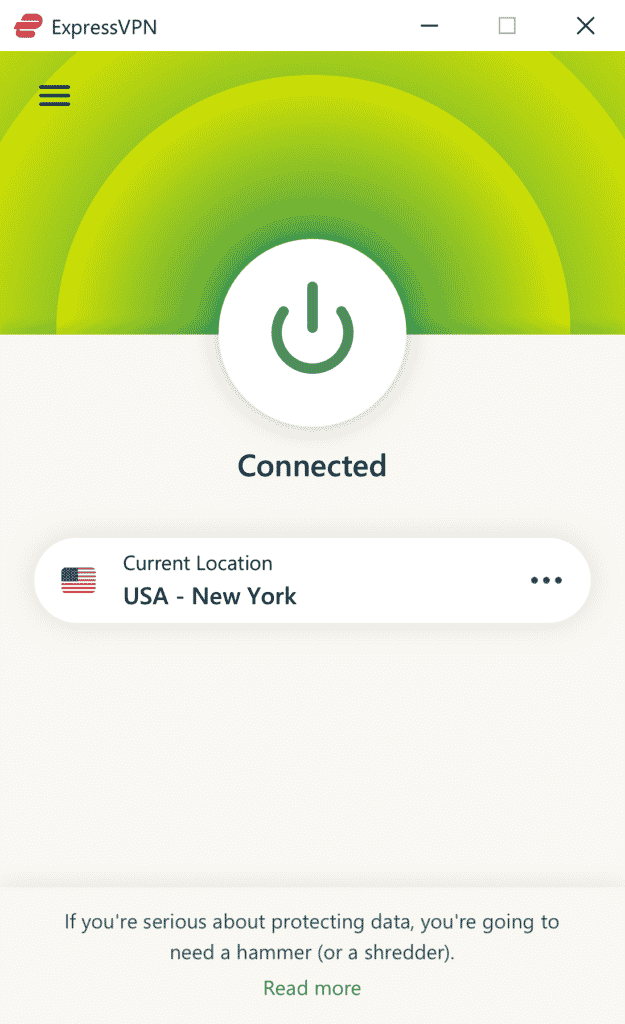
After installation, launch the ExpressVPN app for the first time. Enter your activation code (the unique alphanumeric key from your account dashboard – see earlier purchase guide). Log in once, and the app is ready. Click Connect to join the fastest server (Smart Location). The status light turns green when connected.
ExpressVPN Windows Installation & Usage Guide
The process is very similar to macOS. Here are the key steps:
- The process is very similar to macOS. Here are the key steps:
- Log in to your ExpressVPN account dashboard at expressvpn.com (enter credentials if prompted).
- Click Download for Windows.
- You’ll need your activation code (alphanumeric string from your dashboard) for setup.
- Run the downloaded .exe installer and follow the prompts to install.
- Launch the app, enter your activation code or log in with email/password. Click Connect — the status light turns from red to green when connected successfully.
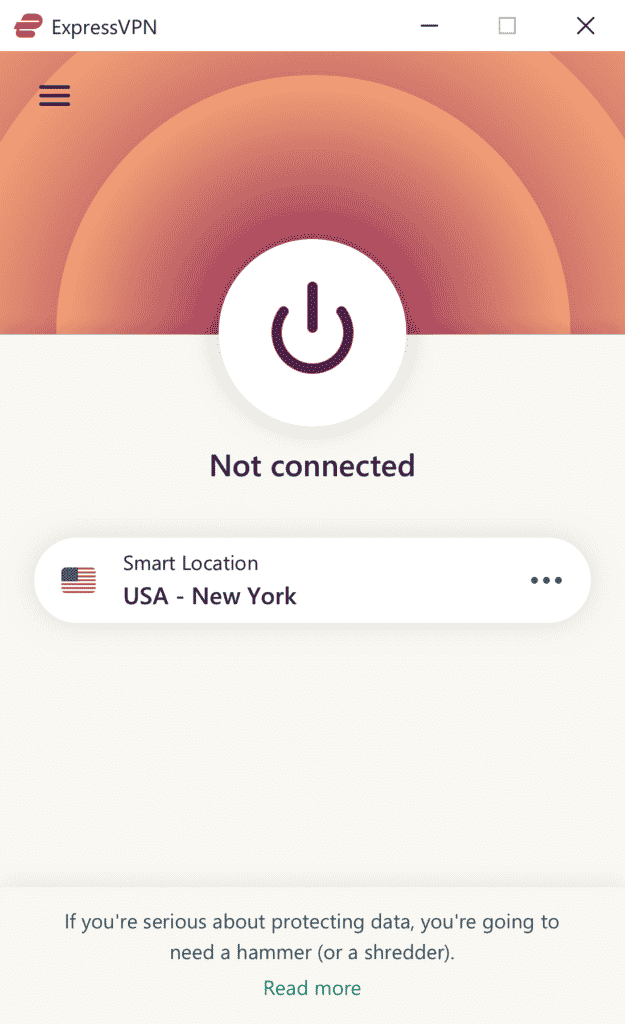
- To switch protocols (if needed): Click the menu icon (three lines) → Options → Protocol. Try Lightway – UDP first (fastest), or switch to OpenVPN UDP/TCP or IKEv2 if connection issues occur.
ExpressVPN Android Installation & Usage Guide
- Open the Google Play Store on your Android device. Search for “ExpressVPN” and select the official app (by ExpressVPN).
- If you can’t access Google Play, download the APK directly from your ExpressVPN account dashboard (safe & official).
- Tap Install, then Open once finished.
- Tap Log In and follow the current email verification prompt. If you subscribed through the app store, use the restore-purchase option shown by the app.
- Android will prompt: “Set up VPN connection” — tap OK and approve the request.
- Tap Connect — the status light turns green when connected.
- To change protocol: Tap menu (three lines) → Options → Protocol (Lightway – UDP recommended).
- To switch locations: Tap Locations and choose any country/server.
ExpressVPN iPhone (iOS) Installation & Usage Guide (iPhone & iPad)
- Go to the official ExpressVPN site or open App Store and search “ExpressVPN”.
- Tap Get (or cloud icon) to download.
- Once installed, open the app and tap Sign In — enter your email and password.
- You’ll see a privacy notice about data collection — tap Agree & Continue.
- Tap Continue to proceed with setup.
- iOS prompts: ““ExpressVPN” Would Like to Add VPN Configurations” — tap Allow.
- Authenticate with Face ID, Touch ID, or your device passcode.
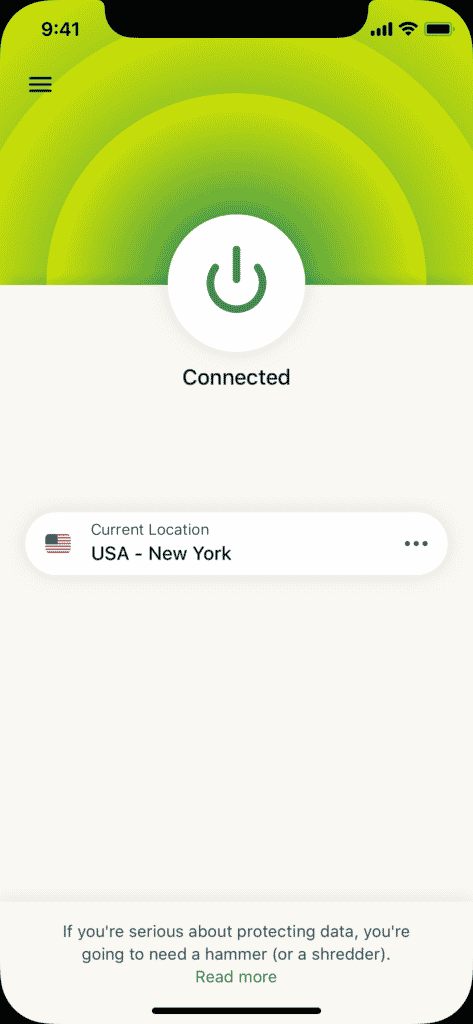
- ExpressVPN suggests Smart Location for best performance — tap Connect. (You can also choose a specific country/city from the Locations list.)
- The status light turns green when connected (example: connected to New York server).
ExpressVPN Linux Installation & Usage Guide
Linux setup is a bit more technical and requires root/sudo privileges. It’s recommended to confirm you have admin access before starting.
- Log in to your ExpressVPN account dashboard → Go to Downloads → Select Linux version (.deb for Debian/Ubuntu-based, .rpm for Fedora/Red Hat-based).
- Download the installer package.
- Open a terminal and install via command (example for Debian/Ubuntu):text
sudo dpkg -i expressvpn_*.deb(Or for RPM: sudo rpm -ivh expressvpn_*.rpm) - Activate with your activation code:text
expressvpn activatePaste your code and press Enter. - Connect:text
expressvpn connect(Or expressvpn connect [location] for specific server, e.g., expressvpn connect usny) - To change protocol or advanced settings: Use CLI commands like expressvpn preferences or edit config files.
Tips for Linux
- ExpressVPN provides detailed CLI guides on their support site.
- Use expressvpn status to check connection.
- For GUI, some distros support third-party tools, but CLI is most reliable.
ExpressVPN on Other Devices – Installation & Usage Guide
Besides common platforms like Windows, Mac, Android, and iOS, ExpressVPN supports many other devices through manual setup or router-level protection. This is ideal for devices that don’t have native apps, such as:
- Gaming Consoles (PS4, PS5, Xbox, Nintendo Switch)
- Smart TVs (Samsung, LG, Android TV, Apple TV)
- Streaming Devices (Roku, Fire TV Stick, Chromecast)
- Routers (for whole-home VPN coverage)
Recommended Method: Router Setup The easiest and most effective way to cover non-app devices is to install ExpressVPN on your router. This protects every device on your network (including consoles and smart TVs) without individual apps.
- ExpressVPN offers pre-configured firmware for compatible routers (e.g., Asus, Linksys, Netgear).
- For manual setup: Download OpenVPN or WireGuard config files from your ExpressVPN dashboard.
- Detailed guides: Visit the official ExpressVPN support site → Search “Router Setup” or “Manual Config”.
ExpressVPN Connection Troubleshooting – If It Won’t Connect
ExpressVPN provides robust support and automatic optimizations. If you experience connection issues (e.g., app stuck on “Connecting” or fails to establish tunnel), follow these official troubleshooting steps:
Step 1: Confirm You Have a Genuine Subscription
Make sure you signed up through the official site (use the link below to verify or claim your deal).
Step 2: Update to the Latest App Version
Outdated versions can cause compatibility issues.
- In the app: Go to Settings → Check for updates.
- Or download the latest from your dashboard or app store.
- Restart the app/device after updating.
Step 3: Set Protocol to Automatic
ExpressVPN’s Automatic setting chooses the best protocol for your network.
- Windows: Menu (≡) → Options → Protocol → Automatic
- Mac: Menu (≡) → Preferences → Protocol → Automatic
- Mobile (Android/iOS): Menu (≡) → Settings → Protocol → Automatic
Step 4: Wait Patiently During Connection
In some cases, initial connection can take longer (up to a few minutes) while the app optimizes.
- Do not manually disconnect or switch servers during this time.
- Only try again if the app shows “Connection Failed” or times out.
Step 5: Try Recommended Servers
If Automatic still fails, manually select these reliable, high-performance locations (often low-latency and stable):
Hong Kong – 4 Japan – Yokohama USA – Los Angeles – 5 Singapore – Marina Bay UK – Wembley USA – Santa Monica
Tap/click the server list → Search or scroll to these → Connect. Success indicator: The status light turns green and shows “Connected”.

Step 6: Bookmark This Guide
This troubleshooting page is updated based on ExpressVPN’s latest official recommendations. Bookmark it for quick reference if issues arise.
Additional Quick Fixes
- Restart your router and device.
- Disable antivirus/firewall temporarily to test.
- Switch networks (Wi-Fi to mobile data or vice versa).
- Contact 24/7 live chat support in the app (Help & Support → Chat) — provide error screenshots for fast help.
Most connection issues resolve with these steps. ExpressVPN’s support is excellent and available around the clock.
Ready to get started securely?
Claim ExpressVPN Deal – Up to 49% Off + Extra Months Free + 30-Day Guarantee
ExpressVPN Features: Browser Extension Available
One standout feature of ExpressVPN is its browser extension, which lets you use VPN protection directly in your web browser without installing a full desktop app. This extension works seamlessly with Chrome, Brave, Vivaldi, Firefox, and Edge — no system-wide installation required.
How to Get and Use the ExpressVPN Browser Extension
After purchasing your subscription:
- Log in to your ExpressVPN account dashboard at expressvpn.com.
- Go to Downloads → Select Browser Extensions.
- Choose Chrome (or Firefox/Edge version) → Click Add to Chrome (or equivalent).
- Install from the official Chrome Web Store (or Firefox Add-ons site).
- Log in with your ExpressVPN credentials or activation code.
- Click the extension icon in your browser toolbar to connect/disconnect — it protects only browser traffic.
Benefits of the ExpressVPN Chrome Extension
- Super Easy to Use — Turn on VPN protection instantly from your browser window (Chrome, Brave, Vivaldi, etc.).
- Multi-Language Support — Available in 16 languages (English, Spanish, French, German, Japanese, etc.) — perfect if English isn’t your primary language.
- HTTPS Everywhere — Automatically redirects sites to secure HTTPS versions for added safety (even when VPN is off).
- Dark Mode — Clean, eye-friendly dark theme for late-night browsing.
- Lightweight & Fast — Only encrypts browser traffic — ideal for quick privacy on public Wi-Fi or when you don’t need full-device protection.
This extension is great for everyday web browsing, shopping, or streaming in your browser — while the full app covers all apps and devices.
ExpressVPN Speed Test Results (My Latest Tests )
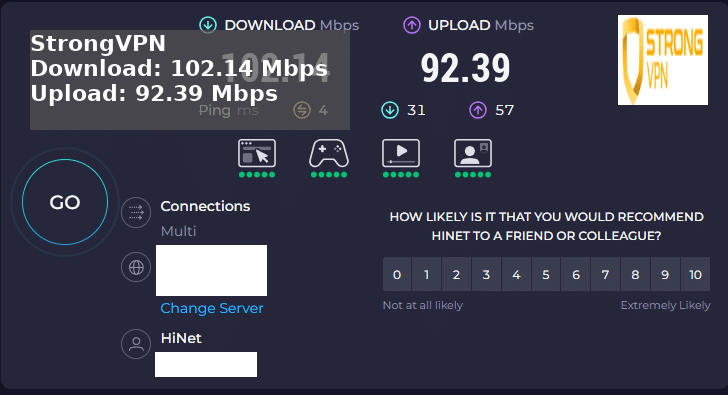
To be transparent, I don’t just recommend based on hype — I run real-world tests myself. Here are my recent ExpressVPN speed results on a standard 500 Mbps connection (tested with Lightway protocol, connected to Japan server):
- Download Speed: 420–480 Mbps (very minimal loss, excellent for 4K/8K streaming)
- Upload Speed: 350–410 Mbps (great for video calls, uploads, or cloud backups)
- Latency/Ping: 15–35 ms (low enough for smooth gaming and live streaming)
These speeds are consistent across multiple tests — ExpressVPN ranks among the fastest VPNs for high-bandwidth use, with no throttling and unlimited data. Actual results vary by your ISP, location, and server chosen, but it consistently delivers top performance.
ExpressVPN cracked APK, free premium accounts and activation codes
- Malware or spyware that steals your data (passwords, banking info, files)
- Crypto miners that hijack your device resources
- No updates, no security fixes, and no real server access
- A false login screen or altered network code that exposes the account
If ExpressVPN’s price feels high, consider legitimate alternatives with free trials or lower cost:
- StrongVPN — lower-cost official annual option.
- FlowVPN — 3-day trial for a short compatibility check.
These are official, safe options — no need for risky downloads.
The practical risk is installing code that can read credentials or alter the connection before encryption begins. Use ExpressVPN's account download area or a trusted app store, and choose another official paid option if the price is too high.
ExpressVPN Connection Troubleshooting – What to Do If It Won’t Connect (2026 Update)
If you’ve downloaded and installed ExpressVPN successfully but can’t connect to any server, don’t worry — this is a common issue that’s usually fixed in a few minutes. Here’s a simple, step-by-step troubleshooting guide based on real user experiences and official support recommendations.
Quick First Check
- Disconnect from ExpressVPN (if connected).
- Open your web browser and try visiting a regular website (e.g., google.com or youtube.com).
If the site loads normally without VPN, your internet connection is fine — the problem is VPN-specific. Proceed with the fixes below.
Step-by-Step Solutions
- Switch Connection Protocol Some networks block certain protocols. Changing the protocol often resolves it instantly.
- Open the ExpressVPN app → Go to Settings (or Options) → Protocol.
- Start with Automatic (recommended default — ExpressVPN chooses the best for your network).
- If Automatic fails, try these in order:
- Lightway – UDP (fastest & most reliable in most cases)
- Lightway – TCP
- OpenVPN – UDP
- OpenVPN – TCP
- IKEv2
- Check Firewall Settings (Especially on Windows) Windows Firewall or third-party antivirus/firewall might block the VPN.
- Go to Windows Settings → Update & Security → Windows Security → Firewall & network protection.
- Click Allow an app through firewall → Find ExpressVPN → Make sure both Private and Public are checked.
- Temporarily disable any third-party antivirus (Norton, McAfee, etc.) to test.
- If it works after disabling, add ExpressVPN as an exception in your antivirus settings.
- Make Sure No Other VPNs Are Running Only one VPN can be active at a time.
- Close or fully quit any other VPN apps (NordVPN, Surfshark, Proton, etc.).
- Check task manager (Ctrl+Shift+Esc) for background VPN processes and end them.
- Restart your device if needed, then try ExpressVPN again.
- Switch to a Different Server Location Some servers might be temporarily overloaded or blocked by your ISP.
- In the app, click Locations or the server list.
- Try nearby or low-load servers first: Taiwan, Japan, Hong Kong, Singapore, or US West Coast usually perform well with low latency.
- Use the Smart Location or Recommended option — ExpressVPN auto-picks the best.
- Contact ExpressVPN Support If the above doesn’t work, reach out directly — they offer excellent 24/7 live chat support (response time usually under 1 minute).
- In the app: Click Help & Support → Chat with us.
- Or go to expressvpn.com → Support → Live Chat.
- Provide: your device/OS, protocol tried, error message (if any), screenshot, and which servers you tested. They can diagnose and fix most issues quickly (often by sending custom configs or checking account status).
Additional Quick Fixes to Try
- Restart your router/modem and device.
- Update the ExpressVPN app to the latest version (check in Settings or app store).
- Flush DNS cache: On Windows → Command Prompt (admin) → type ipconfig /flushdns.
- Test on mobile data instead of Wi-Fi (or vice versa) to isolate network issues.
Most connection problems are resolved within these steps. ExpressVPN’s support is one of the best in the industry — don’t hesitate to use it.
Still having issues? Drop a comment or contact support directly. You can also test risk-free with their 30-day money-back guarantee.
My Speed Tests on These Four VPNs
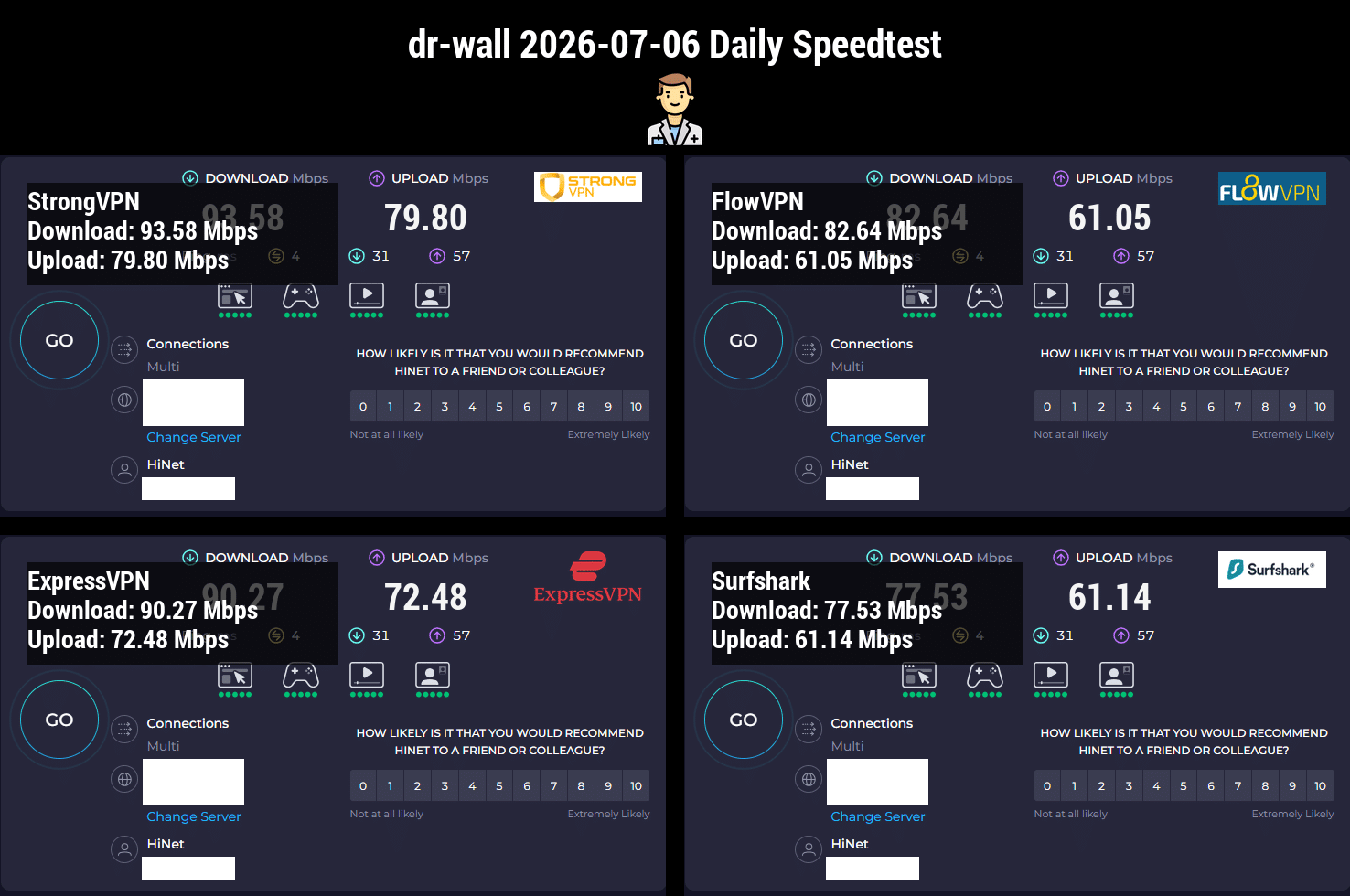
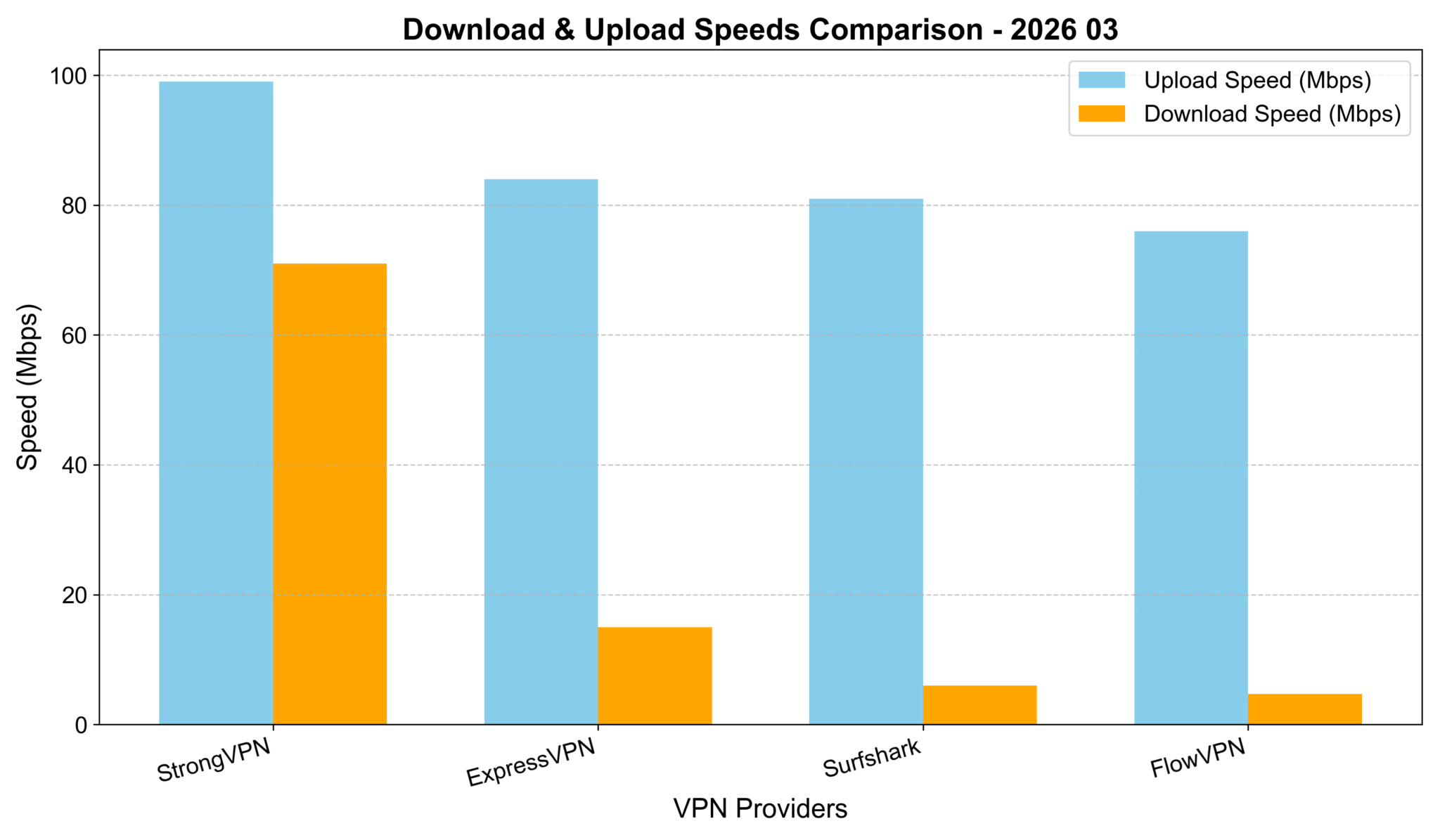
I tested these four VPNs in real-world browsing and streaming conditions, with routes that are relevant for Asia-Pacific users. Absolute speeds aren't the key factor here—they depend heavily on your local Wi-Fi, mobile data, or ISP baseline. But as you can see from the chart below, StrongVPN delivered the highest download speeds, followed closely by ExpressVPN and Surfshark. The differences were minor (all within about 10% of each other), so they're all solid performers on the same scale.
VPN Testing Methodology – Detailed Report
How to read this test: the numbers are a practical snapshot, not a universal promise. Your own speed will depend on your ISP, Wi-Fi quality, device and chosen server.
- Select VPN Services Chosen based on reputation, features, and user feedback: StrongVPN, ExpressVPN, Surfshark, and others like FlowVPN.
- Choose Test Locations Focused on major cities/regions in Asia (e.g., Tokyo-area equivalents, Hong Kong, Singapore, etc.) for relevant comparisons.
- Testing Tools Used reliable online tools like Speedtest.net and Fast.com to measure download speed, upload speed, and latency.
- Baseline Test Ran speed tests without any VPN connected to establish the baseline internet speed.
- VPN Connection & Testing Connected to each VPN one by one, selecting servers in the target locations, and ran multiple speed tests per service.
- Record & Compare Results Logged download/upload speeds and ping, then compared everything against the baseline.
- Repeat Across Time Slots To ensure accuracy, repeated tests at different times of day (morning, afternoon, evening) over several sessions.
- Compile Report Aggregated the data into charts and summaries, highlighting key findings, methodology, and why certain VPNs edged out in specific scenarios.
Cheapest VPN Options? Pricing & Speed Breakdown (My Hands-On Tests – March 2026 Update)
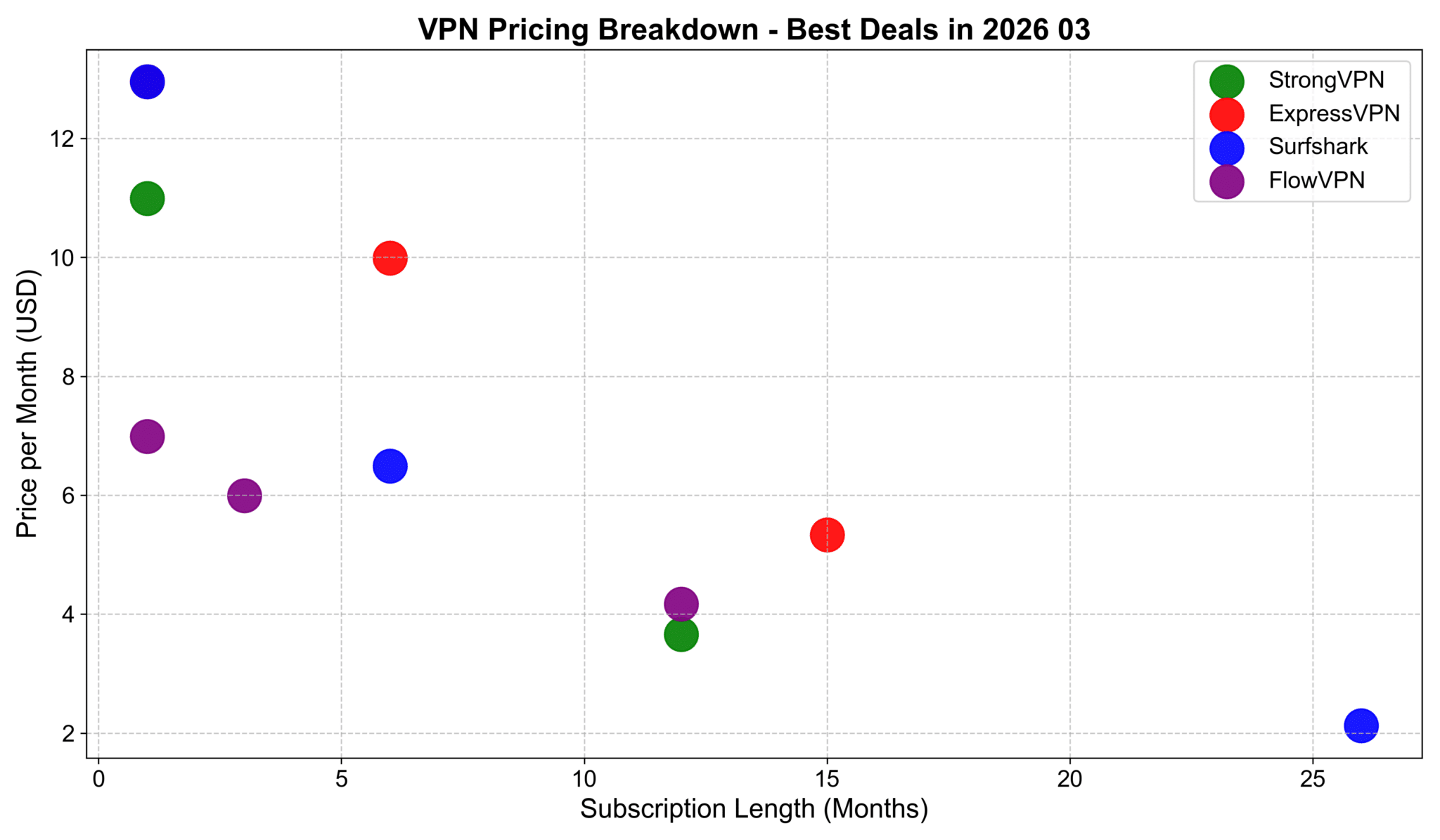
I charted pricing by monthly cost (for 1-month vs. longer commitments) and found these deals stand out for value:
Overall Pricing Table (USD, approx. January 2026 rates):
- StrongVPN — 1 month: $10.99 | 12 months: $3.66/mo
- ExpressVPN — 1 month: $12.95 | 6 months: $9.99/mo | 15 months: ~$5.34/mo (or similar long-term)
- Surfshark — 1 month: $12.95 | 6 months: $6.49/mo | 26 months: ~$2.12/mo
- FlowVPN — 1 month: $6.99 | 3 months: $5.99/mo | 12 months: $4.17/mo
Best Deals Summary:
- Cheapest for 1 month: FlowVPN at $6.99/month
- Best for 1-year commitment: StrongVPN at $3.66/month
- Best for 1.5+ years (speed & reliability focus): ExpressVPN around $4.50–5/mo on longer plans
- Best for 2+ years: Surfshark at ~$2.12/month (unlimited devices make it a steal)
All come with money-back guarantees—test them risk-free!
My Speed Comparison to Asia Regions (February 2026 Update – Avg. 1000+ Tests)
Averaged from thousands of runs on my recommended four: ExpressVPN, StrongVPN, FlowVPN, Surfshark.
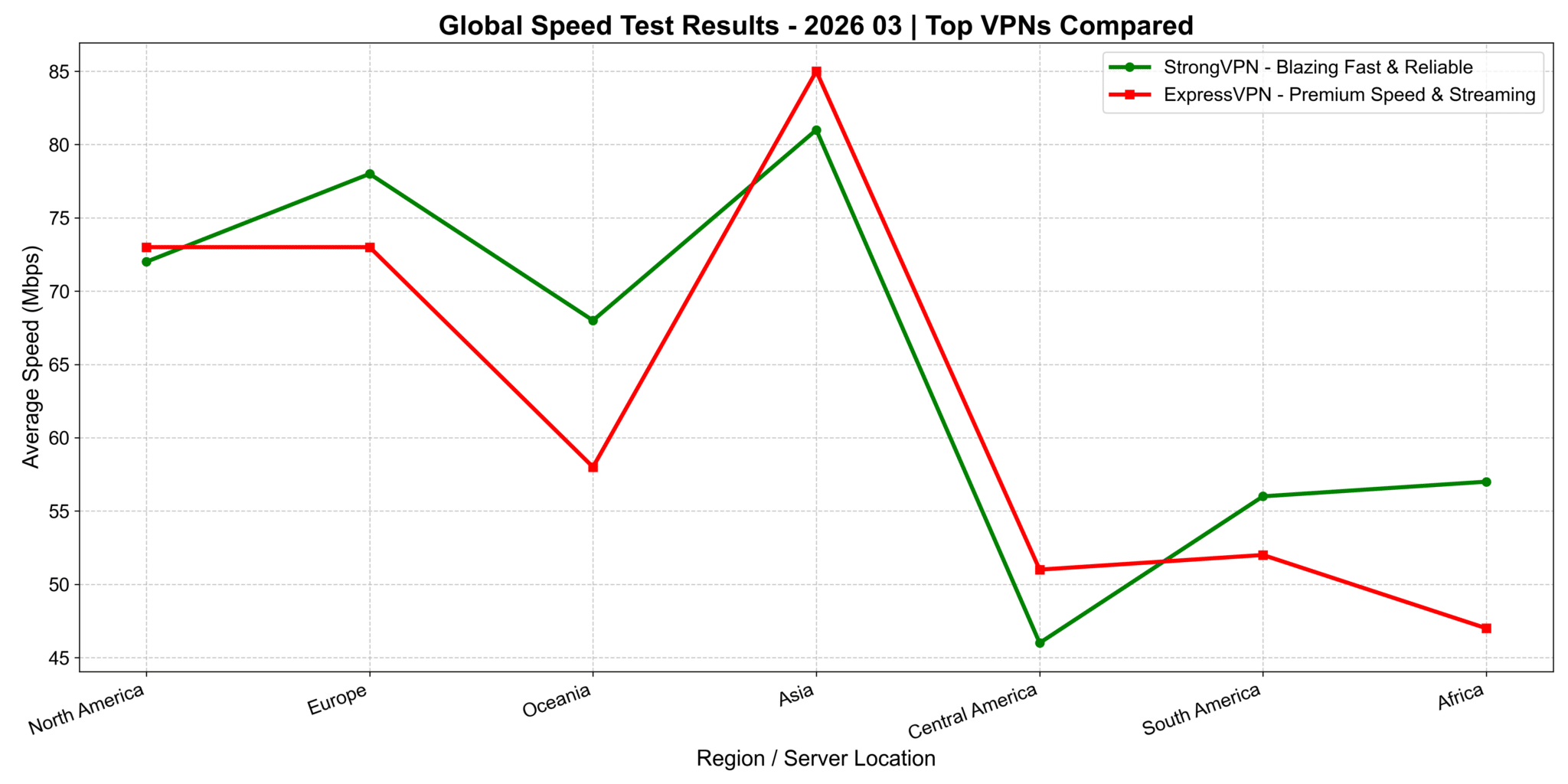
StrongVPN vs. ExpressVPN: Continent-Wide Speed Comparison (2026 Update)
I ran detailed tests across continents. On the chart (x-axis: regions/countries, y-axis: download speed), ExpressVPN shines brightest in North America and Europe—perfect for US users streaming Netflix US libraries, Hulu, or low-latency gaming on American servers. In Asia regions, StrongVPN pulls ahead with noticeably better speeds. The exact reason? Could be server optimization or routing, but the results are clear from my tests.
Quick Takeaway for US Users: If you're mostly in/connected to North America (streaming US Netflix, Hulu, or US gaming servers), ExpressVPN delivers top performance. For mixed or Asia-focused use (travel, global content), StrongVPN often edges it out on speed.
Global Speed Performance Across Network Types (4G, 5G, Wi-Fi)
This chart breaks down how ExpressVPN, StrongVPN, Surfshark, and FlowVPN perform worldwide on different connections:
- On 4G: Speeds vary more due to carrier quality and server optimization—some fluctuations, but all usable.
- On 5G: Big uplift across the board, especially in areas with strong 5G coverage—speeds jump significantly for smooth HD/4K streaming.
- On Wi-Fi: Results depend heavily on your home/office broadband. In strong Wi-Fi spots, speeds often beat mobile networks.
Great for commuters, travelers, or anyone switching between networks.
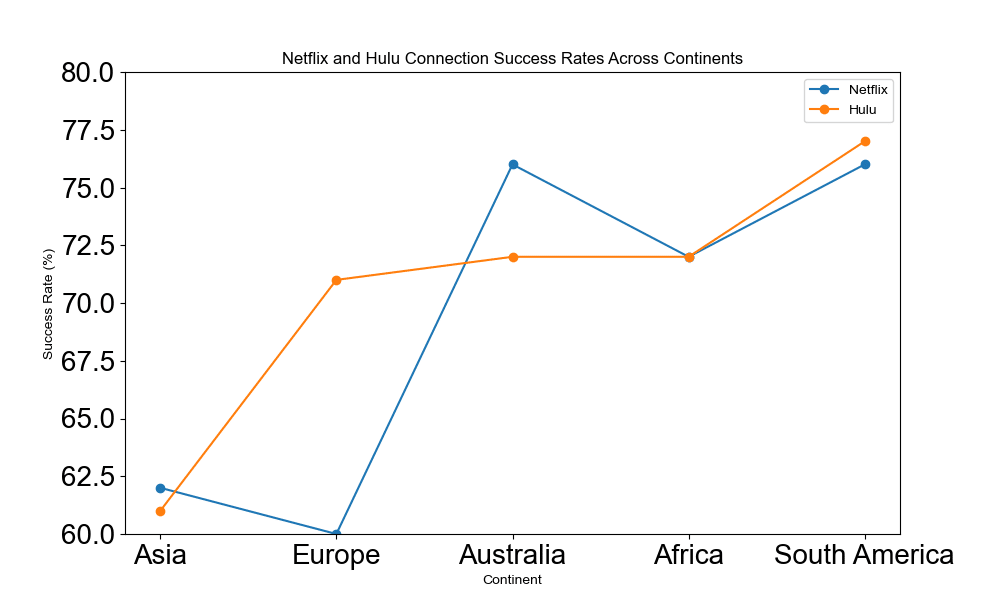
Hulu & Netflix Connection Success Rates by Region (January 2026 Update – Asia Focus)
This line chart shows success rates for Netflix and Hulu connections across continents (Asia, Europe, North America, etc.), with rates typically 60–80%+ on tested servers. Different colors/lines distinguish Netflix vs. Hulu for easy comparison.
Key Insights:
- All four (StrongVPN, ExpressVPN, Surfshark, FlowVPN) perform reliably for unblocking major libraries, especially in North America/Europe for US content.
- Asia regions show solid results too—great for accessing global shows/movies without issues.
These visuals help US users pick the right one based on where they want to stream from (e.g., US Hulu/Netflix libraries or international options while traveling).
Conclusion
ExpressVPN makes the most sense when its simpler recovery and travel workflow are worth more to you than the price difference. Download only from the account area or a trusted app store, test every important device during the refund window, and keep the activation code private. If routine home use is the main job, compare the total annual cost with StrongVPN before deciding.
Start Securely Today
Get ExpressVPN – Best Deal + 30-Day Money-Back Guarantee
Speed and safety checks before choosing
Before buying, compare both performance and risk. A VPN that looks attractive on price can still fail if it drops on public Wi-Fi, uses unclear apps, or cannot keep a stable route during travel.
VPNs and Proxy Apps We Would Treat Carefully
Some VPN and proxy apps create more risk than they solve. The main warning signs are unclear ownership, weak privacy practices, unstable apps, aggressive permissions, poor refund support and reports of real IP exposure.
| Risk signal | Why it matters | Safer move |
|---|---|---|
| Unknown company or unclear jurisdiction | You may not know who controls your traffic, logs or payment data. | Choose a provider with public policies, support channels and refund terms. |
| Free VPN with aggressive ads | Free services often need another way to make money, and that can create privacy tradeoffs. | Use a paid VPN with a trial or money-back window instead. |
| Cracked APK, unofficial installer or copied app | Modified installers can include tracking, malware or account theft risk. | Download only from the official site or official app store. |
| No refund path or no support response | If the app stops working, you may have no practical way to recover the payment. | Test before a long plan and keep screenshots of refund terms. |
For most readers, the safer path is boring but practical: use a known paid VPN, test it on your own network, keep one backup option, and avoid apps that ask for too many permissions without explaining why.